
Configure, Manage, and Monitor Your Redirects, Click-Free
Most redirect work is dashboard work. You log in, find the host, add the rule, pick the status code, toggle the path and query-string options, save, then open another tab to verify it. None of it is hard. All of it is clicking. And the parts that actually matter, like auditing what you already have, catching the typo'd destination before it costs you a week of traffic, or noticing that one rule is absorbing 90% of your hits, are the parts nobody gets around to, because they're tedious.
tl;dr: you can connect your RedirectBoss account to an AI assistant like Claude and just ask. "Set up a redirect from this to that, keep the path, forward the query string." "Show me every redirect with a configuration problem." "Chart my traffic for the last three months." The assistant calls the same API the dashboard uses, works out what you meant, and does the clicking for you, plus the auditing nobody runs.
This is the Model Context Protocol (MCP) server, and it ships with every plan that includes API access. The rest of this post is a tour of what it can do.
What the MCP server is, in one paragraph
MCP is an open standard for connecting AI models to external tools. The RedirectBoss MCP server exposes your account (hosts, redirects, DNS and SSL status, and analytics) as a set of tools an assistant can call on your behalf. You authorize it once with OAuth, approve the scopes you want it to have, and from then on you talk to your redirects in plain English. No API keys pasted into a chat box, no scripts, no SDK.
Connecting takes about a minute (Claude.ai or Claude Desktop):
- Open Claude settings and go to Connectors.
- Add a new custom connector.
- Set the server URL to
https://mcp.redirectboss.com/mcp. - Sign in to RedirectBoss and approve the scopes on the consent screen.
That's it. Claude Code and other MCP clients (Cursor, Zed) work too. Point them at the same URL. Full setup notes live on the MCP Server page.
Now the tour. Each of the things below is a single conversation. Some are illustrated with real (redacted) sessions; the rest work the same way.
Set up a redirect by describing it
You don't fill out a form. You describe the outcome you want, and the assistant turns that into the right configuration.
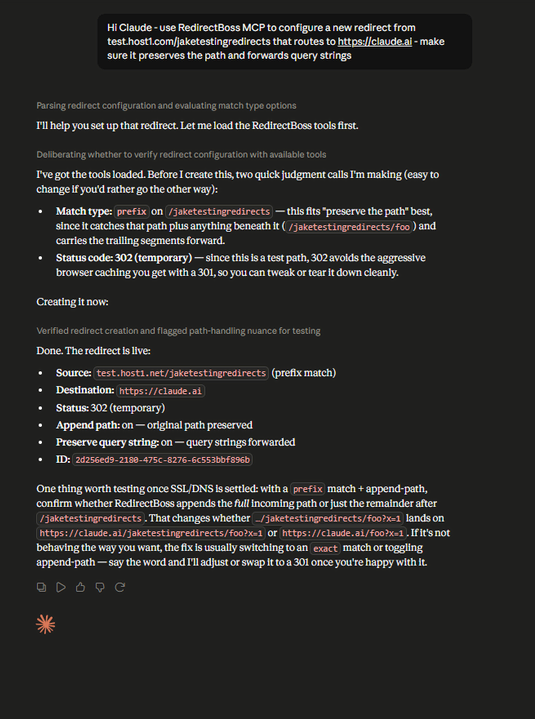
Use RedirectBoss to configure a new redirect from
test.host1.net/jaketestingredirectsthat routes tohttps://claude.ai. Make sure it preserves the path and forwards query strings.
What came back wasn't just "done." It made two judgment calls and told us about them:
- Match type: prefix. "Preserve the path" implies you want everything beneath that path to carry forward too, so
/jaketestingredirects/fooshould land somewhere sensible rather than 404. A prefix match handles that. An exact match wouldn't. - Status code: 302. This is a fresh test path, and a 302 avoids the aggressive browser caching you get with a 301, so you can tweak or tear it down cleanly while you're still iterating. (When should you use a 301 vs a 302?)
Then it created the rule (append-path on, preserve-query-string on) and flagged the one thing worth verifying: with a prefix match plus append-path, you'll want to confirm whether the incoming path gets appended in full or just the remainder. That's the difference between claude.ai/jaketestingredirects/foo and claude.ai/foo as the landing spot. It offered to switch the match type or flip to a 301 once we were happy.
So you're not memorizing which toggle does what. You describe the intent and get a configuration back, along with the reasoning, including the edge case you'd otherwise have found the hard way.
Stand up a brand-new domain, start to finish
Onboarding a domain usually means bouncing between your registrar, the dashboard, and a terminal running dig and curl. Here it's one conversation.
I just bought
promo.acme.com. Add it to RedirectBoss, check whether my DNS is pointing the right way, get SSL going, and once it's ready point it at our spring campaign landing page.
The assistant walks the whole chain: add the host, run a live DNS check to see whether your records resolve to RedirectBoss yet, trigger SSL provisioning via Let's Encrypt, poll the SSL status until the certificate lands, then create the redirect. Each step hands you the next one. A DNS check that comes back resolving tells you you're clear to provision SSL; an SSL check that isn't ready reminds you DNS has to resolve first. Instead of memorizing the order of operations, you follow a conversation that always knows which step you're waiting on.
One honest caveat here: RedirectBoss checks your DNS, it doesn't change it. The actual records (pointing promo.acme.com at us) still get set at your DNS provider, by you. The MCP server has no tool that reaches into your registrar and flips records. That would mean handing us write access to your entire zone, which we don't ask for and you shouldn't grant. What the assistant does is tell you, live, whether the records you set have propagated and resolved correctly, which closes the "did that dig actually work yet?" loop without leaving the chat.
That said, this is where things get interesting if you live in an agentic workflow. Several DNS providers now ship their own MCP servers. Connect both to the same assistant and the gap closes: it can create the record on your provider's side and verify it on ours, in one conversation. RedirectBoss owns the redirect-and-SSL half of that chain and stays deliberately scoped to it. The DNS half is your provider's to automate.
Audit every redirect for configuration problems
This is the one nobody does by hand, and it's where talking to your account pays off.
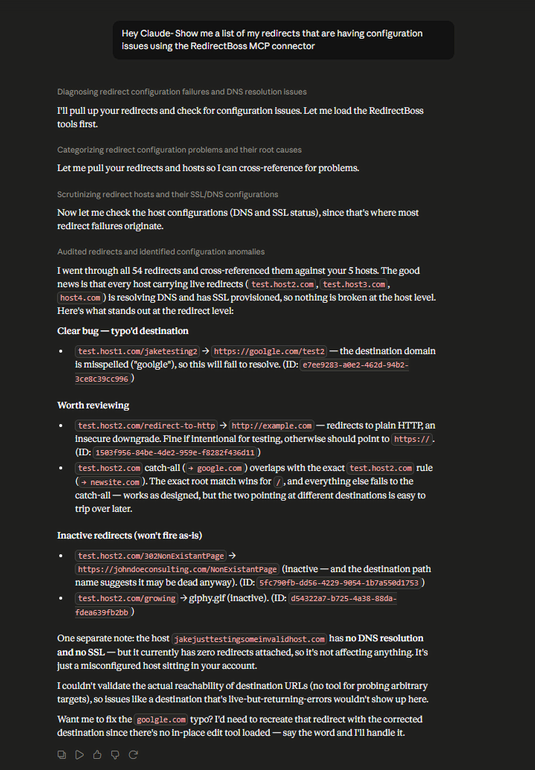
Show me a list of my redirects that are having configuration issues.
The assistant pulled every redirect and every host, then cross-referenced them, because most redirect failures don't live in the redirect. They live in the host's DNS or SSL state. Across 54 redirects and 5 hosts, it sorted the findings by severity:
- A clear bug: a destination pointing at
goolge.com, a misspelling that will simply fail to resolve. - Worth reviewing: a redirect downgrading to plain
http://, and a catch-all rule overlapping with an exact-match rule on the same host (works as designed, but easy to trip over later). - Inactive rules that won't fire as-is, including one whose destination path was named
NonExistentPage(probably dead on the other end too). - A misconfigured host with no DNS resolution and no SSL, but zero redirects attached, so harmless for now. Noted anyway.
It was also clear about what it couldn't check: it has no tool to probe whether an arbitrary destination URL is actually reachable, so a destination that's live but returning errors wouldn't show up here. It doesn't pretend the audit is more complete than it is.
A typo'd redirect destination is the kind of thing that quietly bleeds traffic until someone notices the numbers are down. This finds it in one prompt.
Turn three months of traffic into a chart
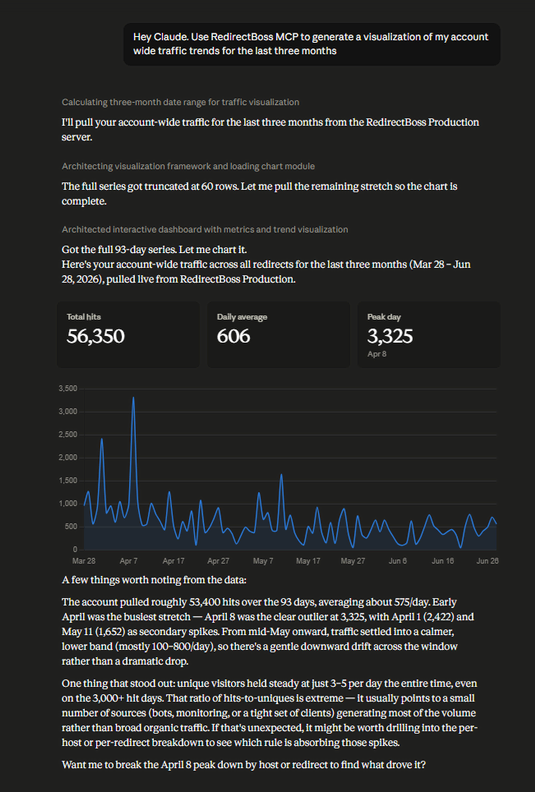
Generate a visualization of my account-wide traffic trends for the last three months.
It pulled the full 93-day daily series, built an interactive dashboard (total hits, daily average, peak day) and rendered the trend line. Around 56,000 hits over the window, roughly 600 a day, with a clear spike on April 8 at 3,325.
The chart itself is the easy part. The useful bit was the read on the data underneath it: unique visitors held steady at 3-5 per day the entire time, even on the 3,000-hit days. That hits-to-uniques ratio is extreme, and it usually points to a small number of sources (bots, monitoring, or a tight set of clients) generating most of the volume rather than broad organic traffic. Then it offered to break the peak down by host or redirect to find the source.
So it's not just rendering a chart. It's reading the chart and telling you what's odd about it.
Trace a spike to the exact rule that caused it
The chart above tells you when something happened. The follow-up tells you what.
Something spiked my traffic on April 8. Which host and which redirect drove it?
The assistant takes the account-wide series, finds the outlier day, then drills into per-host traffic trends to find the host carrying the spike, and per-redirect trends to isolate the exact rule. Every level is pinned to that single day, and the numbers reconcile cleanly from the account total down to the one redirect doing the work. A 3,325-hit anomaly becomes a single named rule in about three follow-up questions, with no log spelunking, no CSV exports, and no eyeballing dashboards.
Rank what's working, and prune what isn't
Rank my redirects by traffic. Which ones are pulling their weight, and which are dead?
The per-host and per-redirect analytics rollups turn "I have 54 redirects and no idea which matter" into a ranked list (total hits, average response time) in one prompt. The top of the list tells you where your real traffic flows; usually a couple of hosts carry nearly all of it. The bottom tells you what's a candidate for cleanup: zero-hit rules, inactive redirects, hosts with no DNS that aren't doing anything.
From there, clearing out dead weight is one more sentence. And because deletes are irreversible, the assistant surfaces them as a confirmation step rather than just doing it.
A note on safety, because you're handing an AI the keys
This matters enough to spell out. The server sorts every tool into three buckets:
- Read-only tools (listing redirects, pulling analytics, checking DNS) just look. They can't change anything.
- Write tools (creating or updating a redirect, enabling SSL) modify your account.
- Destructive tools (deleting a host or a redirect) are irreversible, and most MCP clients prompt you to confirm before they run.
On top of that, you grant scopes at authorization time, and they're role-aware. Over MCP, account members can grant read scopes only, so a teammate connecting an assistant to explore analytics can't create, change, or delete a rule through it. Write access over MCP is reserved for admins (members can still manage redirects from the dashboard itself; it's the AI connection that stays read-only for them). Tokens are short-lived and scoped to your account. And you can review or revoke any connected client from Preferences → Connected Apps in the dashboard.
The practical upshot: you can hand the read-only side to anyone on the team for audits and reporting, and keep write access where it belongs.
Prompts worth trying first
Once you're connected, these are good first asks:
- "List all my hosts and their SSL status."
- "Show me any redirects with configuration problems."
- "Chart my account-wide traffic for the last 30 days."
- "Create a 301 from
/old-pricingtohttps://example.com/pricingonexample.com, and keep the query string." - "Which of my redirects got the most traffic last month?"
- "Run a DNS and SSL check on
example.com."
You'll find the rhythm quickly: describe the outcome, let it pick the mechanics, and ask it to explain anything you want to double-check.
Redirects shouldn't be the hard part, and now they're not even a tab you have to open. Add a domain, point your DNS, and manage every rule from a dashboard or a chat window. RedirectBoss handles SSL, DNS verification, and gives your AI assistant a safe, scoped way to do the busywork.
Frequently asked questions
- Which RedirectBoss plans include the MCP server?
- The MCP server ships with every plan that includes API access. You connect it once with OAuth and approve scopes on a consent screen. There are no API keys to paste or manage.
- Is it safe to connect an AI assistant to my redirects?
- Yes. Every tool is sorted into read-only, write, or destructive, and scopes are granted at authorization time and are role-aware: members can grant read scopes only, write access is admin-only, tokens are short-lived and scoped to your account, and destructive actions prompt for confirmation. You can revoke any connected client from Preferences → Connected Apps.
- Which AI clients work with the RedirectBoss MCP server?
- Any MCP client. Claude.ai and Claude Desktop connect through a custom connector pointed at https://mcp.redirectboss.com/mcp, and Claude Code, Cursor, and Zed work the same way with the same URL.
- Can the MCP server change my DNS records?
- No. RedirectBoss checks whether your DNS resolves correctly but never writes to your DNS provider. Setting the records stays with you at your registrar. It does provision SSL via Let's Encrypt once DNS resolves.
- What can I do through the MCP server?
- Create and configure redirects by describing them, add domains and provision SSL, audit every redirect for misconfigurations, and analyze traffic, including charting trends and tracing a spike to the exact rule that caused it.
Redirects shouldn't be the hard part.
Add a domain, point your DNS, and start redirecting. RedirectBoss handles SSL, DNS verification, and gives you one dashboard for every rule.